Migration to the CRM Unified Interface
Note
Currently the CRM is using the Web Classic interface. The Web Classic interface is being phased out by Microsoft and will be replaced by the Unified Interface.
The Unified Interface is a new user interface that provides a consistent experience across devices, browsers, and screen sizes. It is responsive and adapts to different screen sizes automatically. It is also faster and more accessible than the Web Classic interface. The Unified Interface is the future of Dynamics 365 and will be the only interface available in the future.
Here is a comparison table outlining the key differences between the Web Classic interface and the Unified interface in Dynamics 365:
Feature |
Web Classic Interface |
Unified Interface |
|---|---|---|
User Interface Design |
Traditional, less responsive design. |
Modern, responsive design adaptable to various devices. |
Navigation |
More complex, with multiple clicks required. |
Streamlined, with easier and faster navigation. |
Performance |
Generally slower and less optimized for performance. |
Faster performance with improved loading times. |
Device Compatibility |
Primarily desktop-oriented. |
Works seamlessly across desktop, tablet, and mobile. |
Customizability |
Extensive customization options, but less intuitive. |
Enhanced and more user-friendly customization options. |
Dashboards and Reports |
Traditional dashboards and reports. |
Interactive dashboards and reports with better visuals. |
Business Process Flows |
Limited and less flexible. |
More dynamic and flexible business process flows. |
Integration with Office 365 |
Basic integration capabilities. |
Deeper and more seamless integration with Office 365. |
Accessibility Features |
Limited accessibility features. |
Improved accessibility features for diverse users. |
Updates and Support |
Phasing out, with fewer updates and support. |
Regular updates and ongoing Microsoft support. |
Learning Curve |
Steeper for new users due to complexity. |
More intuitive, resulting in a smoother learning curve. |
How to migrate to the Unified Interface
Migrating to the Unified Interface in Dynamics 365 involves a series of steps to ensure a smooth transition. Here’s a general guide on how to migrate from the Classic Web Interface to the Unified Interface:
Review and Plan:
Conduct an audit of your existing system to understand which features and customizations you’re currently using.
Plan the migration process, including timelines and resources needed.
Create a Sandbox Environment:
Before making any changes to your live environment, create a sandbox (test) environment to implement and test the Unified Interface.
Analyze Customizations:
Evaluate your existing customizations (such as forms, views, and scripts) for compatibility with the Unified Interface.
Make necessary adjustments or redevelopments to ensure they work seamlessly with the Unified Interface.
Test in Sandbox Environment:
Implement the Unified Interface in your sandbox environment.
Test all processes, customizations, and integrations thoroughly.
Training and Documentation:
Prepare your team for the transition by providing training and updated documentation.
Address any concerns or questions they might have about the new interface.
Go Live with Unified Interface:
Once testing is complete and everything is working as expected, deploy the Unified Interface in your production environment.
Monitor and Optimize:
After migration, monitor the system’s performance and gather feedback from users.
Optimize and make adjustments as necessary.
Key Considerations for Migration
Note
It’s possible to use both the Classic and Unified Interfaces simultaneously
Regarding the simultaneous use of Classic and Unified Interfaces on the same entities, Dynamics 365 allows for a transition period where both interfaces can be used. However, it’s important to note the following:
Compatibility: While most entities and customizations are compatible with both interfaces, some older features might only be available in the Classic Interface or might function differently in the Unified Interface.
User Experience: Using both interfaces simultaneously might cause confusion or a disjointed experience for users. It’s recommended to have a clear plan and timeline for fully transitioning to the Unified Interface.
Deprecation of Classic Interface: Microsoft has been gradually phasing out the Classic Web Interface. Therefore, it’s advisable to complete the transition to the Unified Interface as soon as feasible to ensure continued support and access to the latest features and updates.
Entity-Specific Transition: You can transition entities to the Unified Interface gradually. This means you can have some entities in the Unified Interface while others remain in the Classic Interface during the migration phase.
Remember, the migration process can vary depending on the complexity and specific customizations of your Dynamics 365 environment.
Example of the Unified Interface
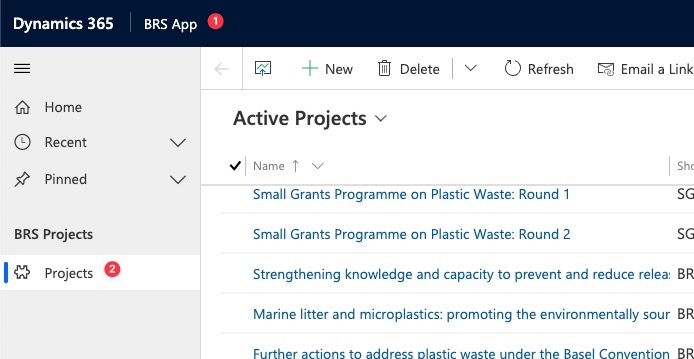
1️⃣ We can create as many Apps as we want. Each App can have its own navigation menu and dashboards. We can also create different Apps for different departments or teams.
2️⃣ We can show only the entities that are relevant to the App. For example, the App for the BRS team can show only the entities related to projects.